Taming AI in Android

couple of things because I am bored of searching them every time my phone gets updated and google tries to shove AI stuff down my throat again. So let’s tame Android AI.

Note: this is based on Xiaomi HyperOS 2 and the diffuculty increases with each step but don’t be afraid.. it’s only yours after you have voided the warranty! :)

1 – The digital assistant / Power Button shortcut

Currently there is a trend (android 14/15) to launch the digital assistant instead of powering off your phone. That’s easy to fix.

go Settings > Additional settings > Gesture shortcuts > Launch digital assistant
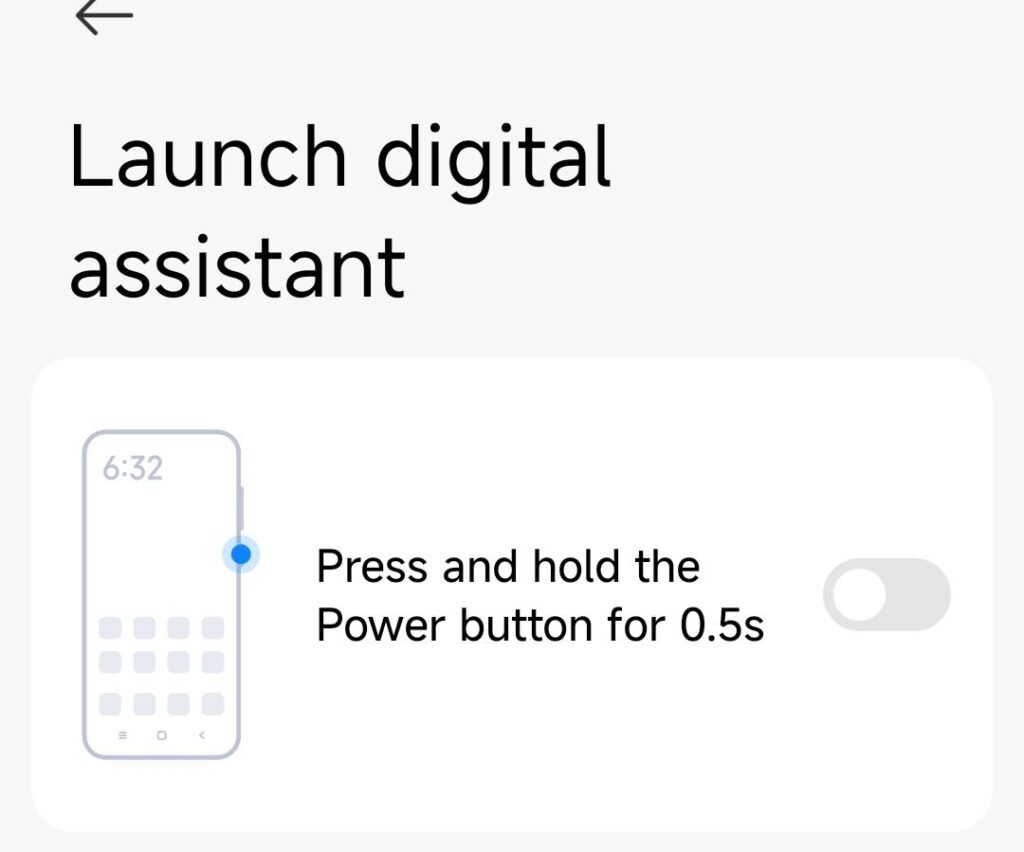
while disabling the digital assistant shortcut there, you might also want to enable power off when pushing the power button.. because that’s what a power button is supposed to do? Damn I’m old for demanding this kind of stuff….

2 – circle to search / invoking AI

I may actually want to keep that one.. but I keep accidentially triggering it and then.. everything that is on my screen at that very moment gets sent to google’s datacenter for analysis.. useful when you want to learn what you are looking at but can be a big privacy risk. use at your own discretion. Here is how to disable it.

Under Settings > Home screen > System navigation. Choose if you are using gestures or virtual buttons. depending on your choice, set up what holding down the home button or the fullscreen indicator does. If you disable “circle to search” it won’t pop up again.
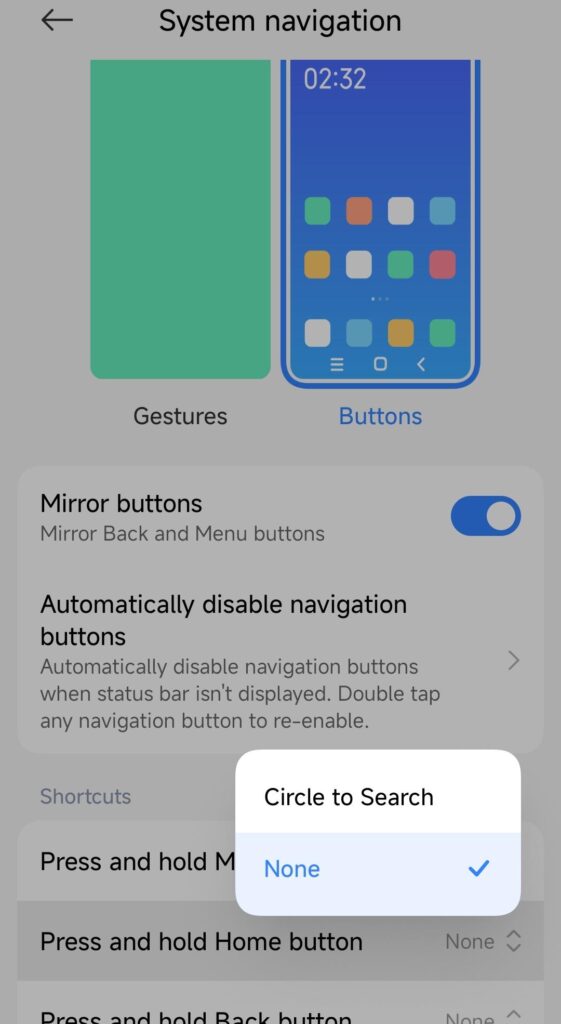
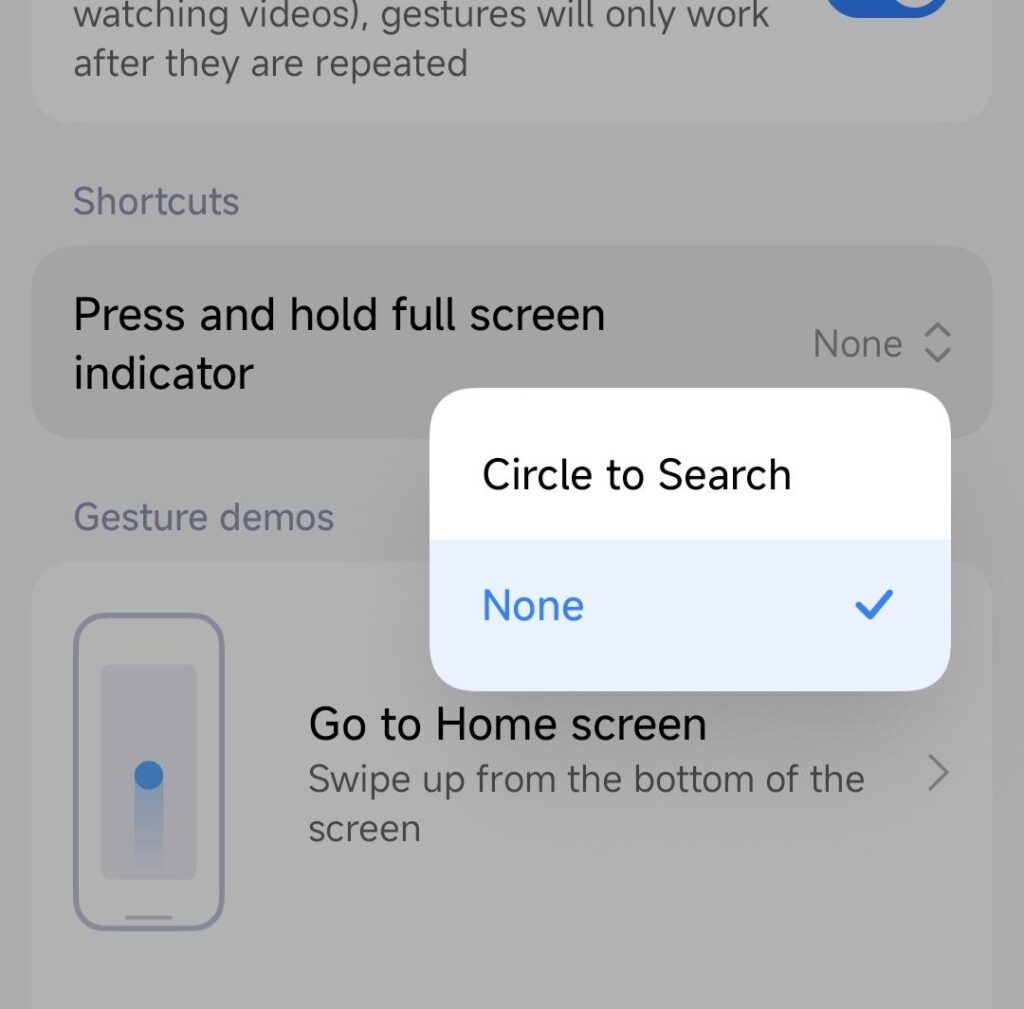
you can also disable it entirely, but that comes later.

3 – disable the assistant shortcut

Also called “corner swipe” – that one is hidden nicely. I hate this kind of dark patterns.. I keep triggering it with my hand when I use the phone. The shortcut is swiping up from the bottom right corner of the screen.

Go Settings > Apps – on the top right corner push the three dots.
select “Other settings”
Choose “Default apps” and on the bottom select “Assist and voice input”
choose “None”
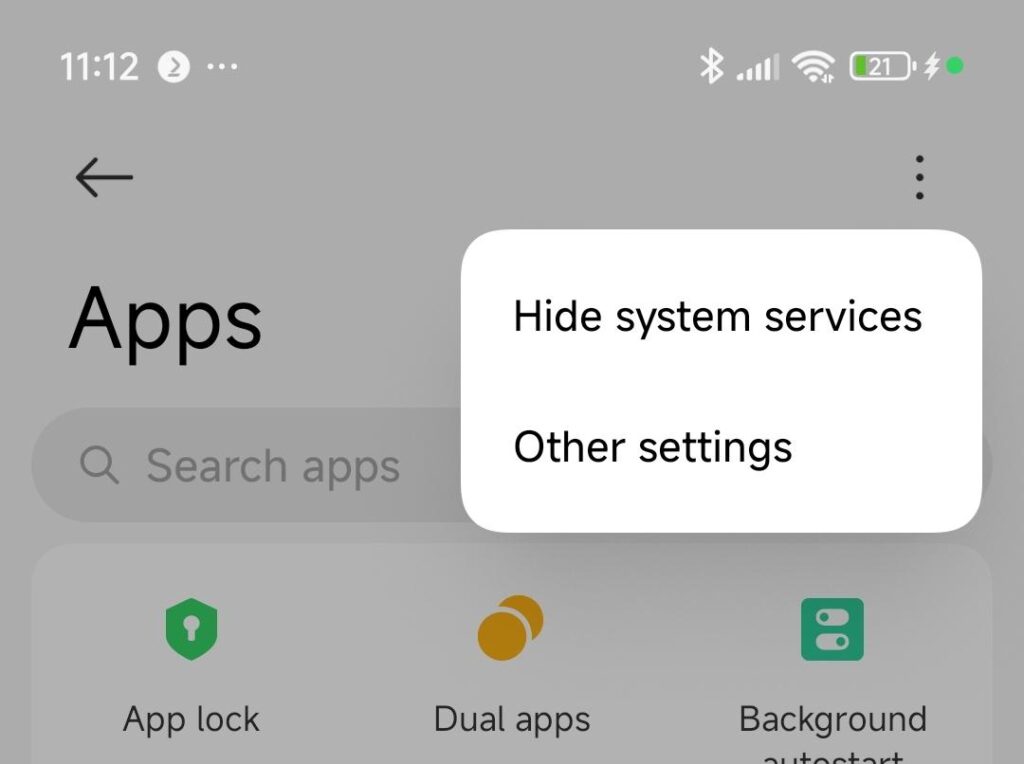
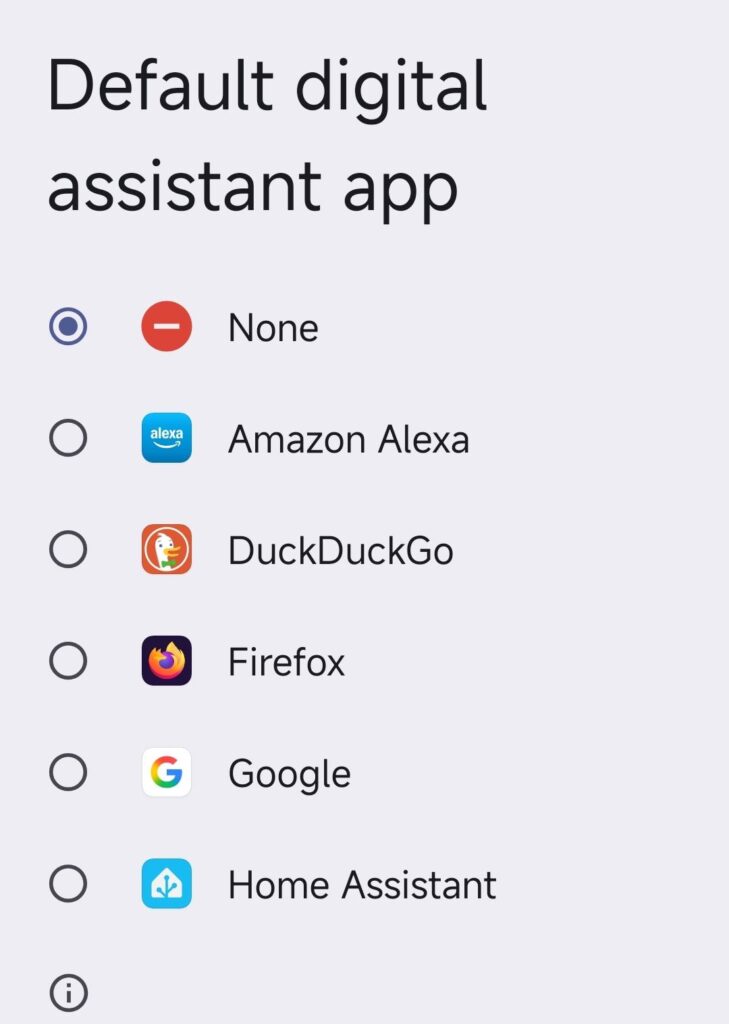
this disables the corner swipe shortcut.

4 – from here it gets difficult.. we will remove google’s assistant entirely

(this is not for the faint of heart.. so only do this when you are not afraid re-installing your phone if it fails)

The problem is: google being google they want you to accidentially trigger and re-activate the assistants. like this:

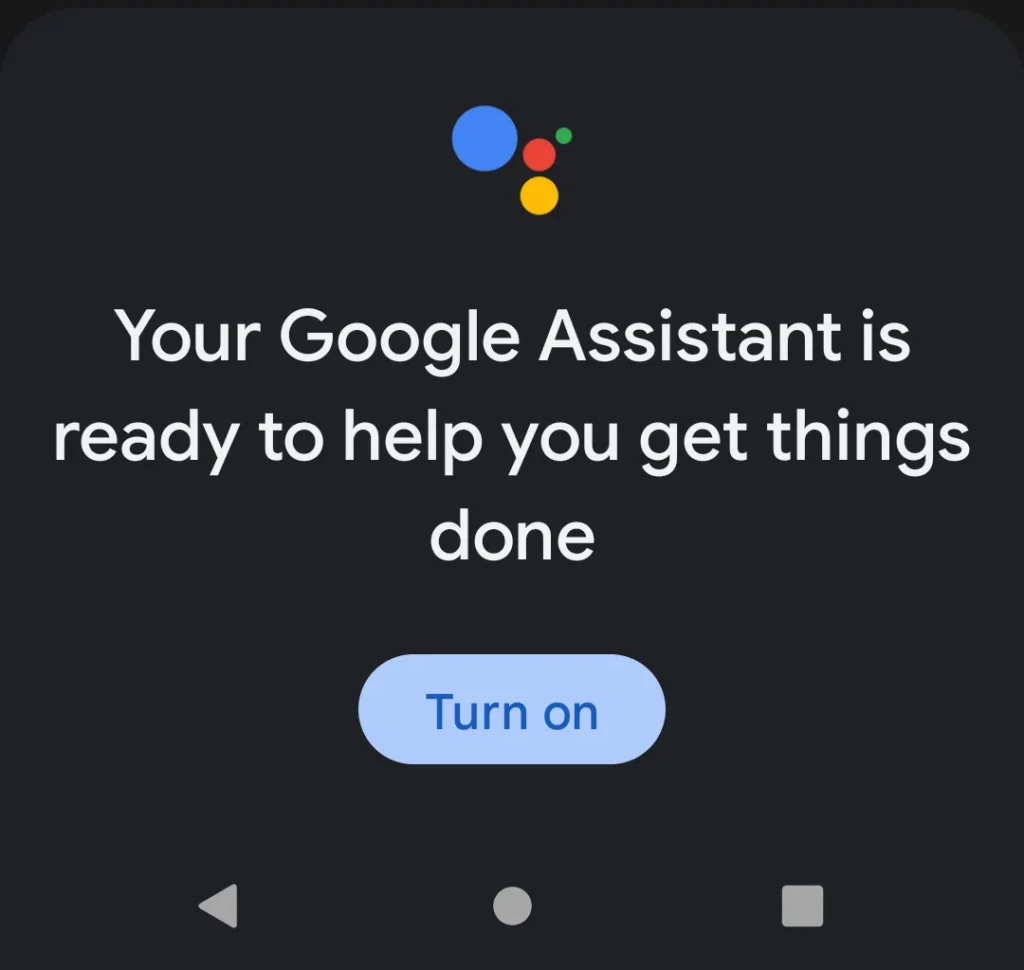
so let’s just tear it out for good. any major update will probably bring this back but then just repeat this step.

First of all: you need developer options enabled in Android. This is a step that can cause your warranty to be void, your phone to catch fire or eat your children.. so.. enter at your own risk.

Go settings > About Phone and tap 10 times on the OS version (sometines the serial number.. this is differnt for every model). Confirm the warning and you have enabled developer options.

A new option has appeared in settings > Additional settings > Developer options. Go there.

Enable the master switch on top, scroll to the “Debugging” section and enable “USB debugging”
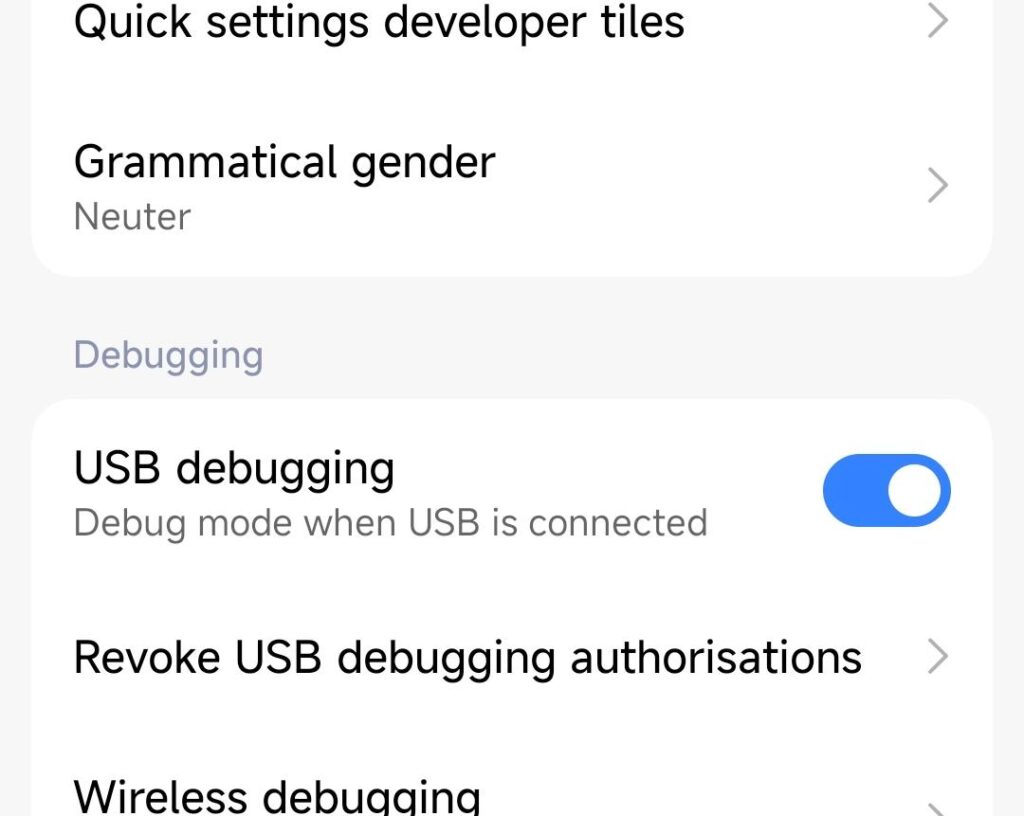
Next, grab a PC, install Android platform tools (windows/linux/mac) and your device drivers.
https://developer.android.com/tools/releases/platform-tools

your phone’s drivers are dependent on the manufacturer. Google’s (for pixel) are here:
https://developer.android.com/studio/run/win-usb

Xiaomi’s (and others) are here:
https://developer.android.com/studio/run/oem-usb
https://bigota.d.miui.com/tools/xiaomi_usb_driver.rar

once installed, go to github and find a “debloat” suite for Android. like this one:
https://github.com/0x192/universal-android-debloater

once you get it to run, find “bard” and remove it. “bard” is Gemini’s internal name. Also search for “googleassistant” and “okaygoogle” – remove them too.
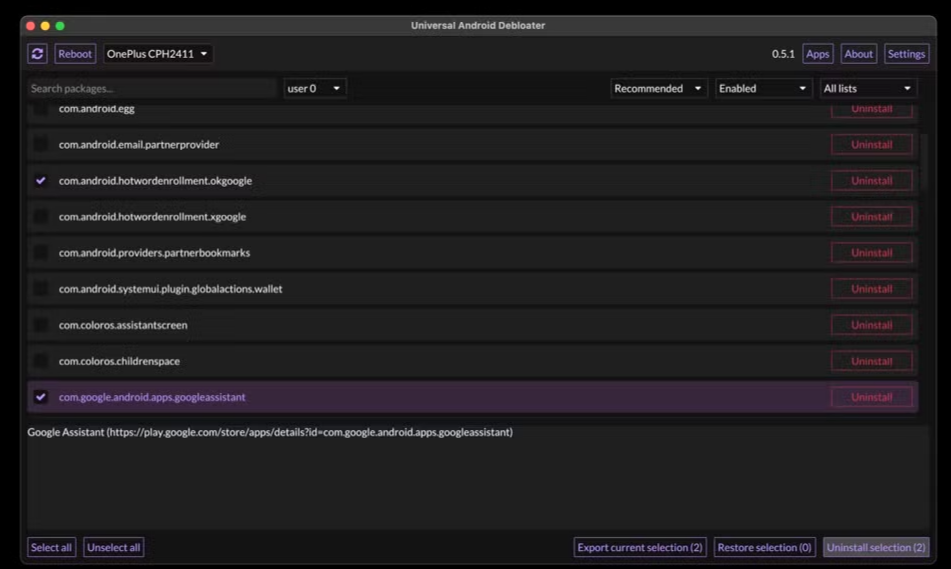
click “uninstall selection” – reboot your phone – cross your fingers and enjoy assistant-free android (until the next software update, when it will come back disguised as someone else or under a different name.. but I will update this post)

google assistant be like…

5 – bonus (I will pay you a coffee if you tell me how)

how to remove the AI prompt from Gmail? I found the setting for SMS/Messages but I can’t find the switch for gmail.. and when you swipe up to go through your accounts.. all of a sudden the button shifts to the left and you hit the AI button again. FFS Google.. what’s wrong with you???
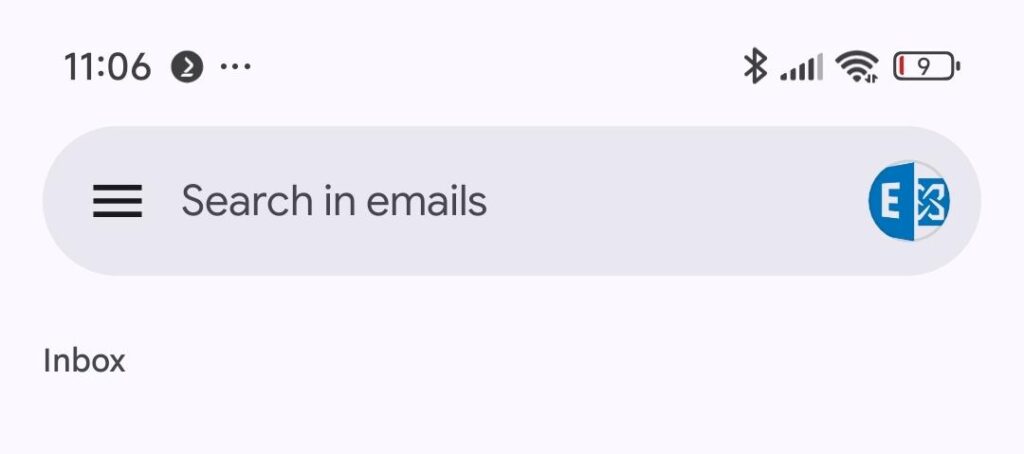
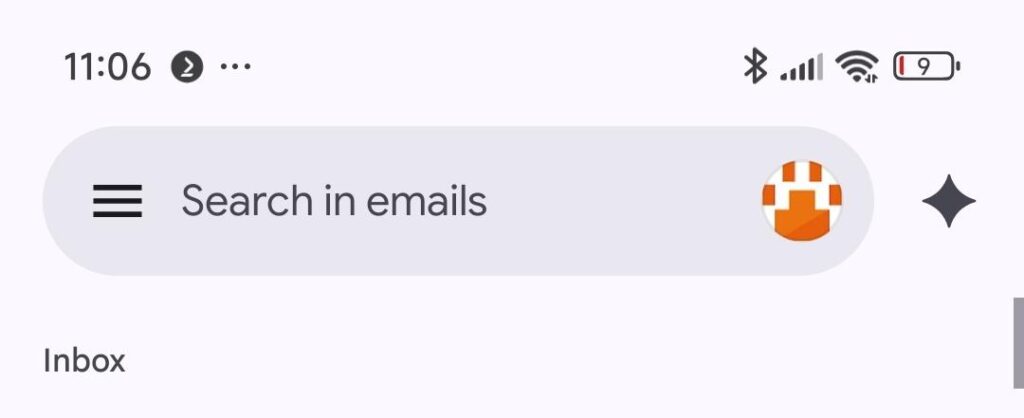
yes.. I will charge my phone~

blocking youtube, insta and facebook once and for all

I have been busy for a while figuring out just how much freedom and control I need to use to keep my children from harm from the online world.. after all I know how much trolling is going on and how much hate is being generated/amplified there.
At the same time I am still that blind optimist that believes as long as people talk to each other eventually the good guys will pravail and win because they work together.
Now, with facebook and google using smart algorithms mining big data that they generate from millions of hosts and applying that with addiction-generating systems that generate revenue.. I must admit that is a) very smart, b) a dick move and by all means c) unacceptable if it happens on the back of innocent, uncorrupted and ignorant beings (namely my children)

so I have been using google family link to control the devices of my kids for a while now.
I don’t care what websites they use and who they chat with, they need to learn that some people don’t want to be your friend themselves.
But I have created a blacklist that contains three words:
– youtube
– instagram
– facebook

these three started out wonderful and creative and are now what McDonalds feels like. Fat, lethargic and only interested in making more money. In my eyes they don’t exist anymore but I realize how much the peers of my children are pushing them back and always back again into these platforms.
Everyone who knows a bit about data mining will understand that even without a facebook account, the fact that 5 of your friends have one and they have your number in their address book, that facebook app has access to that address book (to help you “find your friends faster”) and that they get location and demographic information about you by banner ads and tracking cookies that are sent to your device will pretty much tell them all about you without you having an account. It is highly efficient and super scary.

So… while I can more or less control the mobile devices I can not do this for the PC at home.
Also I was looking for a time keeper to control how many hours they are busy.
(Again.. I don’t care if it’s music videos, reddit or minecraft.. but there has to be a balance)

Also laptops can be carried to the neighbors, so installing a pi-hole or DNS blocklists won’t work once they are at the neighbors, whos mother things I am paranoid (I am!) so.. another solution was needed. > see below

Continue reading

automated Plex backup 2019 style

2019 – ubuntu is now using systemd (18.04LTS), my home server is running a ryzen processor, CIFS is almost as fast as NFS now and the automated rsync jobs have stopped.
Time to re-build them!
Note: This is a closed system, I am not taking care of security here much as my network is considered “secure” – this is probably not going to win many security awards

Step 1: Networking

Ubuntu 18.04 uses systemd and netplan so no more hacking around /etc/network/interfaces. The config is in /etc/netplan – the default file is 50-cloud-init.yaml

network:
version: 2
ethernets:
enp2s0:
dhcp4: false
addresses:
- 10.0.0.2/24
mtu: 9000

and apply the settings with sudo netplan apply
and verify withip addr
ST,UP,LOWER_UP> mtu 1500 qdisc fq_codel state UP
however, this did not bring the mtu to 9000 so we need another thing:
> sudo ip link set mtu 9000 enp2s0
and from what I hear this may not be transitory / survive reboots.. in that case it needs to go into the startup scripts.
Anyway: that’s what I wanted:
enp2s0: MULTICAST,UP,LOWER_UP> mtu 9000 qdisc fq_codel state UP

Step 2: Mount the NAS

verify shares are working (NFS and CIFS)

andreas@plexcloud:/$ showmount -e 10.0.0.1
Export list for 10.0.0.1:
/shares/public *
/shares/andreas *
andreas@plexcloud:/$ smbclient -L //10.0.0.1 -U andreas
WARNING: The "syslog" option is deprecated
Enter WORKGROUP\andreas's password:
Sharename       Type      Comment
---------       ----      -------
public          Disk      public
andreas         Disk      Andreas sein Zeug

try to mount is manually: (as root because I will mount using fstab later)

root@plexcloud:~# mount -t cifs -o username=andreas,password=xxxxxxxxxxxx,iocharset=utf8,file_mode=0777,dir_mode=0777,soft,user,noperm,vers=1.0 //10.0.0.1/public /mnt/NAS/

root@plexcloud:~# ls /mnt/NAS
[data]

actually. it’s 2019.. I changed my mind wrt fstab.. let’s use automount (As I never know if my NAS will be up or not while I move to my new place)
https://help.ubuntu.com/community/Autofs <<< that’s supposed to be easy?

apt install autofs
edit /etc/auto.master and add the line
/mnt /etc/auto.smb
(which should tell autofs to look at /etc/auto.smb and perform its magic in /mnt) – basically mounting SMB shares in the /mnt directory. CIFS would be a better way.. which doesn’t work for me.. so it’s the manual mode for me for now

for the lazy me: edit fstab and add:
//10.0.0.1/public /mnt/NAS/ cifs username=YOURUSERNAME,password=YOURPASSWORD,iocharset=utf8,file_mode=0777,dir_mode=0777,soft,user,noperm,vers=1.0
vers=1.0 is to bypass the “host is down” error (assuming proper authentication should be used) and the rest is to bypass said authentication and not to fuck around with file permissions (just behave like a fucking USB stick, damn it.. no one else is using you!)
yeah, I know.. “guest” would probably work, too.. but I had bad experiences with permissions afterwards.

so now I have a mountpoint, let’s do backups!

Step 3: test and automate rsync jobs

motivation: rsync with delete – whatever I delete from the source can be deleted on the backup, too
full sync for the server directory, only check by size for the media files
I like -v and “–progress” as it gives me an indication what is going on (on the first run…)
however not in the scripts, a simple –stats will have to do, there…

so for the server backup:
rsync -ahv /var/lib/plexmediaserver/ /mnt/NAS/backups/plexmediaserver/ --progress --delete --stats --dry-run
non-verbose and “live” mode:
rsync -a /var/lib/plexmediaserver/ /mnt/nas/backups/plexmediaserver/ –delete

(I removed the -z because the data dir is 7 GB and the compression too too long on that stupid atom-based nas)

and for files:
rsync -ahv /plex/ /mnt/NAS/plex/ --progress --size-only --delete --stats --dry-run
and non-verbose:
rsync -aq /plex/ /mnt/NAS/plex/ --size-only --delete

first version of the script used copy but this took AGES to finish so rsync all the way now. After all it seems my old seagate NAS does rsync :D

the /var/lib/plexmediaserver dir still takes way too long.. so I will tar and zip it and rsync it over instead – much faster – also –delete-source-files is handy (as mv can not overwrite and I don’t feel good calling rm -rf in a script executed by root….)

tar -zcvf plexmediaserver.tar.gz /var/lib/plexmediaserver/

finished script: added to crontab

0 4 * * * cd /home/andreas && sh backup_plex.sh>>plex_backup.log

#!/bin/bash
echo "+++stopping plex media server"
systemctl stop plexmediaserver.service
sleep 5
echo "+++backing up server and cache"
#rsync -ahz /var/lib/plexmediaserver/ /mnt/NAS/backups/plexmediaserver/ --stats --delete
tar -zcf /opt/plex/plexmediaserver.tar.gz /var/lib/plexmediaserver/
echo "+++copying tarball over to NAS"
#rsync -ahv /opt/plex/ /mnt/NAS/backups/plex/ --remove-source-files --progress --stats
rsync -ah /opt/plex/ /mnt/NAS/backups/plex/ --remove-source-files
echo "+++restarting plex media server"
systemctl start plexmediaserver.service
echo "+++server backup complete - now for the files"
#rsync -ahv /plex/ /mnt/NAS/plex/ --progress --size-only --delete --stats
rsync -ah /plex/ /mnt/NAS/plex/ --size-only --delete